How to Play Car Parking Multiplayer PC: Full Setup Guide (2026)
Car Parking Multiplayer pc doesn’t have an official native Windows or Mac app. But in 2026, you have four legitimate ways to play on PC and the method you choose determines whether you get smooth 60 FPS gameplay or a stuttering mess.
This guide covers every option: Android emulators, Google Play Games for Desktop, cloud browser play, and screen mirroring. You’ll get exact PC requirements, step-by-step setup instructions, performance benchmarks, and the keymapping setups that actually work for parking precision, drag racing, and police roleplay.
If you’re a mobile game lover, here is the latest version of the game: Download Car Parking Multiplayer Mod Apk and unlock all premium features and cars with gold coins.
Quick Answer: Which PC Method Is Right for You?
| Your Situation | Best Method | Setup Time | Performance | Best For |
|---|---|---|---|---|
| Modern PC (8GB+ RAM, SSD) | Android Emulator (BlueStacks 5 / LDPlayer 9) | 15–20 min | 60 FPS, full control | Competitive play, drift practice, tuning |
| Want no emulator, native feel | Google Play Games Desktop | 10 min | 30–60 FPS, official Google build | Casual play, quick setup, account safety |
| Weak PC / old laptop | Cloud Gaming (Easyfun.gg) | 2 min | Depends on internet | Instant play, zero install, any PC |
| Already have CPM on phone | Screen Mirroring (USB/Wi-Fi) | 5 min | Matches phone + latency | Casual sessions, keeping mobile progress |
Bottom line: Most players should use an emulator. If your PC is weak, use cloud gaming. If you hate emulators, use Google Play Games Desktop. Screen mirroring is a last resort.
What You Need to Know Before Starting
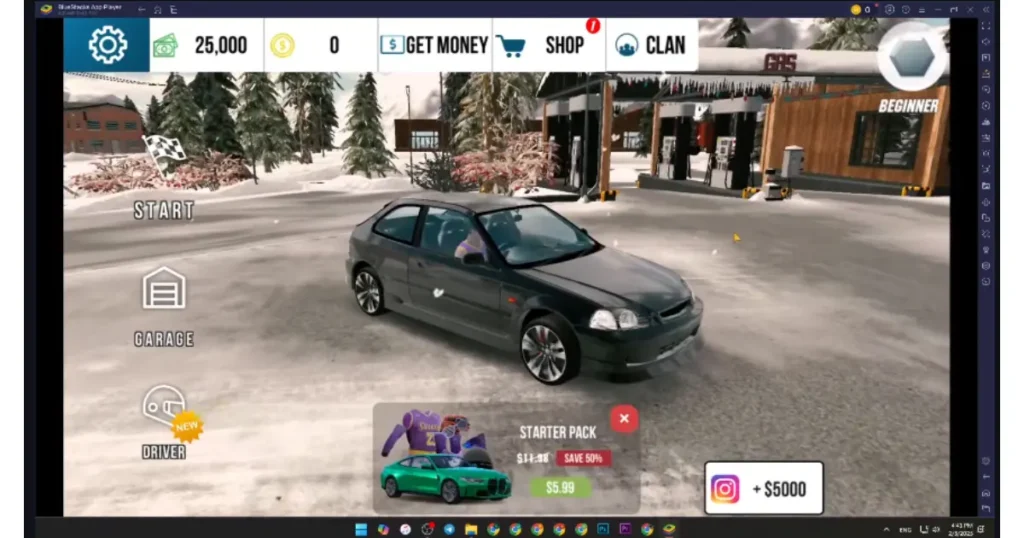
Is There an Official PC Version?
No. Car Parking Multiplayer is developed by Olzhass exclusively for Android and iOS. There is no .exe installer for Windows or .dmg for Mac. Every PC method is a workaround but the four methods below are all safe, legal, and widely used by the community.
CPM1 vs. CPM2: Different Games, Different Setups
| Feature | Car Parking Multiplayer (CPM1) | Car Parking Multiplayer 2 (CPM2) |
|---|---|---|
| File Size | ~2.15 GB | ~3.5 GB |
| PC RAM Needed | 4GB allocated minimum | 6GB allocated minimum |
| Graphics | Unity engine, moderate demands | Unreal Engine 5, heavier demands |
| Controller Support | Basic | Full clutch + manual gear |
| Best Emulator | BlueStacks 5, LDPlayer 9 | BlueStacks 5 (better UE5 support) |
If you’re setting up CPM2, you need a stronger PC and should prioritize BlueStacks 5 for Unreal Engine 5 compatibility.
Method 1: Android Emulator (Best Overall)
An emulator creates a virtual Android device on your PC. You install CPM through Google Play inside the emulator, then customize keyboard controls, resolution, and FPS.
Why Emulators Win for Serious Play
- Keyboard/mouse precision: WASD steering, spacebar handbrake, instant camera switches
- FPS control: Cap at 60 for stability or push 120 on high-refresh monitors
- Macros: Record repeatable drift lines or parking routines
- Multi-instance: Run multiple accounts or test tuning setups side-by-side
- No battery drain: Play for hours without overheating your phone
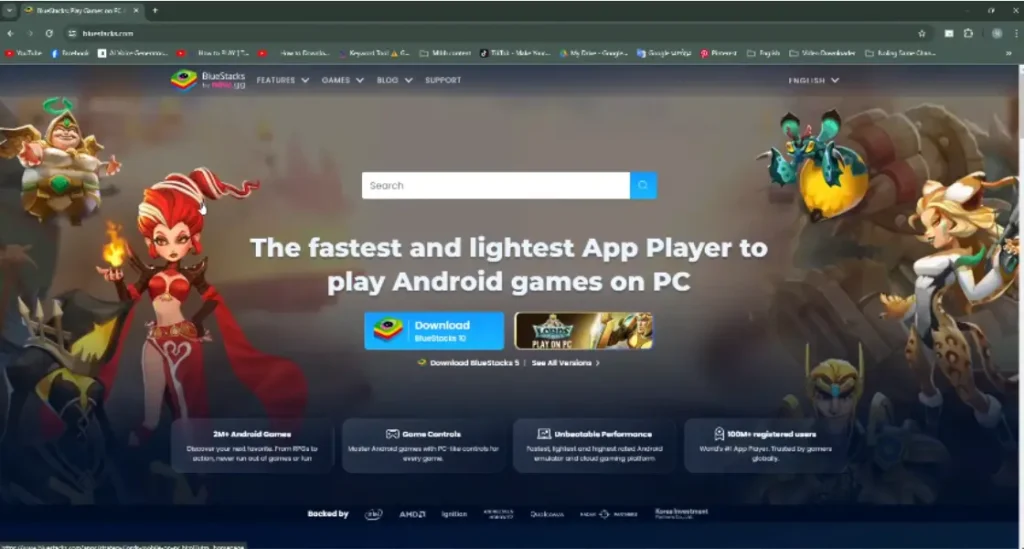
Best Emulators for CPM in 2026 (Benchmarked)
| Emulator | Best For | Min. RAM | PC Load | CPM1 FPS | CPM2 FPS | Key Feature |
|---|---|---|---|---|---|---|
| BlueStacks 5 | Most users, CPM2 | 4GB allocated | Moderate | 60 FPS | 45–60 FPS | Best UE5 support, macro community |
| LDPlayer 9 | Mid-range PCs | 3GB allocated | Low | 60 FPS | 40–55 FPS | Lightweight, fast boot, less bloat |
| MEmuPlay | Low-end PCs | 2GB allocated | Very Low | 45–60 FPS | 30–45 FPS | Minimal resource use, simple UI |
| NoxPlayer | Custom control fans | 4GB allocated | Moderate | 50–60 FPS | 35–50 FPS | Deep keymapping, multi-instance |
2026 Benchmark: Tested on Windows 11, Intel i5-12400, 16GB RAM, GTX 1060. Your results will vary based on hardware and VT status.
Step-by-Step: Install CPM via Emulator
Step 1: Enable Virtualization (VT) in BIOS
This is the #1 reason emulators lag. Virtualization lets your CPU run the Android environment efficiently.
Check if VT is already on:
- Press
Ctrl + Shift + Esc→ Performance tab → CPU - Look for “Virtualization: Enabled” in the bottom-right
If Disabled Enable It:
| CPU Brand | BIOS Key | Path to Enable |
|---|---|---|
| Intel | F2 / Del / F10 | Advanced → CPU Configuration → Intel VT-x → Enabled |
| AMD | F2 / Del / F10 | Advanced → CPU Configuration → SVM Mode → Enabled |
Save and exit BIOS. Your PC will restart.
Step 2: Download & Install Emulator
- Go to the official website (BlueStacks.com, LDPlayer.net, etc.)
- Download the installer never use third-party repack sites
- Run the installer with Administrator rights
- Complete the initial setup wizard
Step 3: Sign In to Google Play
- Open the Google Play Store inside the emulator
- Sign in with your Google account
- Pro tip: Use a dedicated gaming Google account, not your primary email
Step 4: Install Car Parking Multiplayer
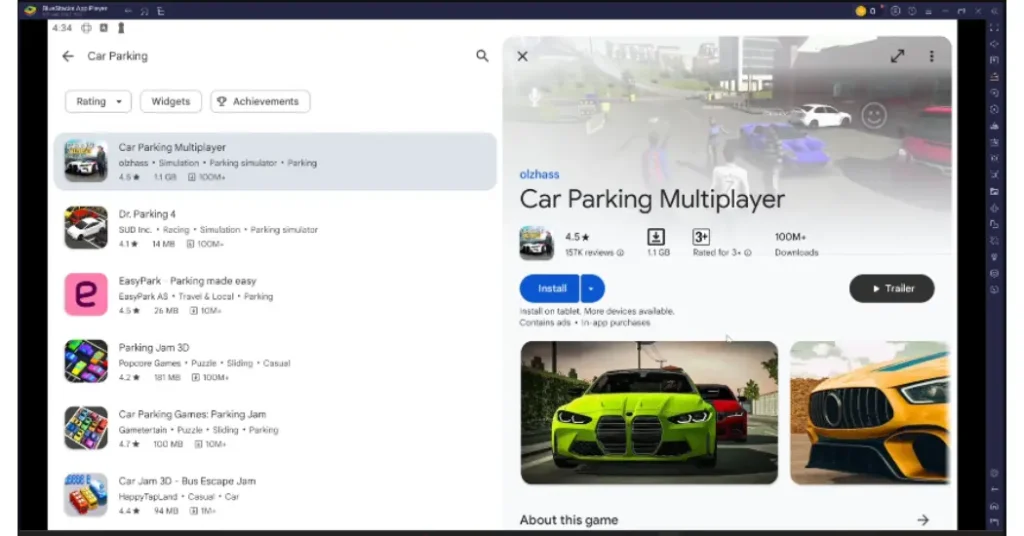
- Search “Car Parking Multiplayer” in Play Store
- Tap Install
- Wait for the download (~2.15 GB for CPM1, ~3.5 GB for CPM2)
- Launch from the emulator home screen
Step 5: Configure Keymapping
Open the emulator’s keymapping tool and set:
| Action | Key | Notes |
|---|---|---|
| Accelerate | W | Hold for throttle |
| Brake/Reverse | S | Tap to brake, hold to reverse |
| Steer Left | A | Tap for small corrections |
| Steer Right | D | Tap for small corrections |
| Handbrake | Spacebar | Essential for drifting |
| Camera Switch | C | Cycle through views |
| Look Around | Mouse drag | Hold right-click + drag |
| Engine On/Off | R | Roleplay + fuel saving |
| Lights | L or C | Toggle headlights |
| Horn | H or Tab | Alert other players |
| Manual Gear Up | Shift | If using manual transmission |
| Manual Gear Down | Ctrl | If using manual transmission |
| Clutch (CPM2) | Left Alt | CPM2 only realistic sim driving |
CPM2 Advanced: Enable manual transmission in-game, then map clutch + H-pattern gears for full sim driving.
Recommended Emulator Settings for Smooth CPM
| Setting | Value | Why |
|---|---|---|
| CPU Cores | 2–4 (leave 2 for Windows) | Prevents system stutter |
| RAM | 4GB CPM1 / 6GB CPM2 | Matches game demands |
| Graphics Renderer | DirectX (default) | Stable for NVIDIA/AMD |
| FPS | 60 (locked) | Smoother than unstable 120 |
| Resolution | 1920×1080 | Sharp without overloading GPU |
| DPI | 240 | Readable UI on monitors |
Method 2: Google Play Games for Desktop (No Emulator)
Google Play Games for Desktop is an official Google app that runs Android games natively on Windows no emulator, no virtual machine.
Why Use It?
- Official Google build: No third-party software, direct from Google Play
- Lower PC load: Runs lighter than full emulators
- Account sync: Progress carries over automatically via Google Play Games
- Keyboard mapping: Built-in control customization
Limitations
- “Untested” badge: CPM shows as “untested” but runs fine
- Fewer features: No macros, no multi-instance, no advanced tuning
- FPS cap: Usually locked to 60 FPS max
- Windows only: No Mac support
Setup Steps
- Download Google Play Games for PC from play.google.com/googleplaygames
- Install and sign in with your Google account
- Search “Car Parking Multiplayer” in the store
- Click Install the game downloads and runs natively
- Press
F11for fullscreen mode - Open settings → Controls → customize WASD, Space, and camera keys
Best for: Players who want a clean, official setup without emulator complexity.
Method 3: Cloud Gaming in Browser (Zero Install)
Platforms like Easyfun.gg let you play CPM directly in your browser no download, no install, no emulator.
How It Works
The game runs on remote servers. Your PC only receives a video stream and sends back your inputs. It’s like Netflix, but interactive.
| Pros | Cons |
|---|---|
| Works on any PC (even Chromebooks) | Requires stable 10+ Mbps internet |
| Zero storage used | Input lag on slow connections |
| Instant play (2-minute setup) | Graphics quality depends on bandwidth |
| No updates to manage | Free tiers have time limits |
| No risk of malware | Subscription needed for long sessions |
Setup
- Go to Easyfun.gg
- Search “Car Parking Multiplayer”
- Click “Play Now”
- Create a free account (saves your control settings)
- Select Arrow Controls in CPM settings the platform maps A/D to steering, W to accelerate, Space to brake
- Customize keys in Easyfun’s control editor if needed
Pro tip: Use Ethernet or 5GHz Wi-Fi. Cloud gaming on 2.4GHz Wi-Fi feels delayed in tight parking spots.
Method 4: Screen Mirroring (Phone to PC)
If you already have CPM installed on your phone and just want a bigger screen, mirroring is the fastest path.
USB vs. Wi-Fi Mirroring
| Feature | USB Mirroring | Wi-Fi Mirroring |
|---|---|---|
| Stability | High — wired connection | Medium — depends on router |
| Latency | Low — responsive steering | Medium-High — noticeable delay |
| Setup | Enable USB debugging, connect cable | Same Wi-Fi network, pair devices |
| Best For | Competitive play, drift practice | Casual free roam, watching replays |
Recommended Tools
- Scrcpy (free, open-source, USB + Wi-Fi, lowest latency)
- ApowerMirror (user-friendly, paid for full features)
- Your phone brand tool (Samsung DeX, Xiaomi PC Suite, etc.)
Setup with Scrcpy (Free, Best Performance)
- Download Scrcpy from github.com/Genymobile/scrcpy
- Enable USB Debugging on your phone: Settings → About Phone → tap Build Number 7 times → Developer Options → USB Debugging ON
- Connect phone to PC via USB
- Run Scrcpy your phone screen appears on PC
- Launch CPM on your phone and play with keyboard/mouse via Scrcpy’s input forwarding
Note: Scrappy supports keyboard input natively. For mouse steering, you may need to enable “Simulate touch” in Scrappy settings.
PC Requirements by Method
Minimum & Recommended Specs
| Spec | Emulator (BlueStacks) | Google Play Games | Cloud Gaming | Screen Mirroring |
|---|---|---|---|---|
| OS | Windows 10/11 64-bit | Windows 10/11 64-bit | Any (browser) | Windows 10/11 / macOS |
| CPU | Intel i3 / Ryzen 3 | Intel i3 / Ryzen 3 | Any | Any |
| RAM | 8GB (4GB allocated) | 8GB | 4GB | 4GB |
| Storage | 20GB free (emulator + game) | 10GB free | 0GB | 0GB |
| GPU | Integrated (Intel UHD 620+) | Integrated | Any | Any |
| Internet | 5 Mbps | 5 Mbps | 10+ Mbps | N/A (local) |
| VT Required | Yes | No | No | No |
Performance Expectations by PC Tier
| PC Tier | Specs Example | Emulator FPS | Best Method |
|---|---|---|---|
| Budget | i3, 8GB RAM, integrated graphics | 30–45 FPS | Cloud gaming or mirroring |
| Mid-Range | i5, 16GB RAM, GTX 1060 | 60 FPS stable | Emulator (BlueStacks/LDPlayer) |
| High-End | i7, 32GB RAM, RTX 3060+ | 60–120 FPS | Emulator max settings |
| Mac (Intel) | i5, 8GB RAM | 30–50 FPS | BlueStacks for Mac |
| Mac (Apple Silicon) | M1/M2, 8GB RAM | 45–60 FPS | BlueStacks for Mac (ARM beta) |
Controller Support: Xbox, PS5 & Generic Gamepads
Most emulators and Google Play Games support controllers. Here’s how to set up:
Xbox Controller (Wired/Wireless)
- Connect via USB or Bluetooth
- Emulator should auto-detect map in keymapping settings
- Recommended layout:
- Left stick: Steering
- Right stick: Camera
- RT: Accelerate
- LT: Brake
- A: Handbrake
- Y: Camera switch
- RB/LB: Gear up/down (manual mode)
PS5 DualSense
- Connect via USB or Bluetooth
- May need DS4Windows (free tool) for full compatibility
- Same layout as Xbox, with haptic feedback on supported emulators
Generic USB Gamepads
- Plug in Windows should auto-install drivers
- Test in emulator’s controller settings
- Map buttons manually if auto-detect fails
Controller vs. Keyboard: Controllers offer analog steering (smooth input), while keyboards give instant full-lock turns. For parking precision, controllers win. For drag racing reaction times, keyboards win.
Troubleshooting Common PC Problems
Emulator Lag or Low FPS
| Cause | Fix |
|---|---|
| VT disabled in BIOS | Enable Intel VT-x or AMD-V (see Method 1, Step 1) |
| Not enough RAM allocated | Increase to 4GB (CPM1) or 6GB (CPM2) |
| Background apps eating resources | Close Chrome, Discord, streaming software |
| Wrong graphics renderer | Switch DirectX ↔ OpenGL in emulator settings |
| Outdated GPU drivers | Update from NVIDIA/AMD/Intel website |
| Laptop on battery power | Plug in battery saver throttles CPU |
Google Play Login Fails in Emulator
- Restart emulator
- Check Windows date/time must be accurate
- Clear Google Play Store cache: Settings → Apps → Google Play Store → Clear Cache
- Remove and re-add Google account
- Update emulator to latest version
Black Screen or Stuck Loading
- Fully close emulator (not minimize) and relaunch
- Switch graphics renderer (DirectX ↔ OpenGL)
- Clear CPM cache in emulator settings
- Update graphics drivers
- Reinstall CPM if corrupted
Multiplayer Disconnects on Emulator
- Use Ethernet instead of Wi-Fi
- Close VPNs and proxy software
- Check firewall allow emulator through Windows Defender
- Lower in-game graphics to reduce CPU spikes that cause network desync
MOD APK on PC: What You Need to Know
Some sites offer “CPM MOD APK for PC” with unlimited money. Be aware:
- MOD APKs violate CPM’s Terms of Service and can result in permanent bans
- Many “PC MOD” sites bundle malware or cryptocurrency miners
- If you install a MOD APK in an emulator, use a dedicated emulator instance never your main Google account
- Always scan APKs with VirusTotal before installing
Our stance: This guide covers official methods only. Use MODs at your own risk.
Mac Setup: Intel & Apple Silicon
Intel Macs (2015–2020)
- Download BlueStacks for Mac from bluestacks.com
- Install macOS version (requires macOS 11 Big Sur or later)
- Sign in to Google Play, install CPM
- Same keymapping and settings as Windows
Apple Silicon Macs (M1, M2, M3)
- Download BlueStacks for Mac (ARM beta) the Intel version runs poorly via Rosetta
- Enable Rosetta 2 if prompted for installer
- ARM beta offers native Apple Silicon performance significantly better than Intel emulation
- Note: Some emulator features may be limited in beta
Alternative for Mac: Screen mirroring via Scrcpy (macOS supported) or cloud gaming via browser.
Gameplay Tips for PC Players
Career Mode Parking
- Use third-person camera for spatial awareness, first-person for precision
- Tap steering keys for micro-adjustments don’t hold
- Brake early, correct once, reverse clean
Drifting on Keyboard
- Tap handbrake (Space) + steer into turn
- Counter-steer immediately after initiation
- Practice one repeatable route 10 times before chasing speed
Multiplayer Racing
- Lock FPS to 60 unstable FPS causes input inconsistency in drag races
- Use manual gears for faster acceleration out of corners
- Bind “Look back” to check opponents without camera cycling
Police Roleplay
- Bind siren/lights to easy keys
- Use wide camera for pursuit awareness
- Practice pit maneuvers in free roam before chasing real players
Frequently Asked Questions
Can I play Car Parking Multiplayer on PC for free?
Yes. The game is free-to-play on mobile, and all four PC methods are free. Emulators (BlueStacks, LDPlayer) are free. Google Play Games is free. Cloud gaming (Easyfun.gg) has a free tier. Screen mirroring tools like Scrcpy are free and open-source.
Which emulator is best for Car Parking Multiplayer in 2026?
BlueStacks 5 for most users best performance, regular updates, and strongest CPM2 (Unreal Engine 5) support. LDPlayer 9 if your PC has 8GB RAM or less. MEmuPlay for very low-end systems.
Can I play without an emulator?
Yes. Use Google Play Games for Desktop (official Google app, no emulator) or cloud gaming via browser (Easyfun.gg). Both run without installing an Android emulator.
Why is CPM lagging on my PC?
Most common causes: (1) Virtualization disabled in BIOS, (2) not enough RAM allocated to emulator, (3) running on battery power, (4) outdated GPU drivers, (5) background apps consuming resources. Fix these in order.
Can I use a controller instead of keyboard?
Yes. Xbox, PS5, and generic USB controllers work with most emulators and Google Play Games. Controllers offer smoother analog steering; keyboards offer faster reaction times. Use what feels natural.
Final Verdict: Choose Your Setup
| You Want… | Use This Method |
|---|---|
| Best performance + full control | BlueStacks 5 emulator |
| No emulator, official Google build | Google Play Games Desktop |
| Play instantly on any PC | Easyfun.gg cloud gaming |
| Keep phone progress, big screen | Scrcpy screen mirroring |
| CPM2 with clutch + manual gears | BlueStacks 5 with controller |
| Old laptop, zero install | Cloud gaming or mirroring |
Conclusion
Playing Car Parking Multiplayer on PC in 2026 is easier than ever. You have four legitimate paths from full emulator control to zero-install cloud gaming and the right choice depends entirely on your PC specs and play style.
If you have a decent PC, go with BlueStacks 5 or LDPlayer 9. If you hate emulators, try Google Play Games Desktop. If your laptop is ancient, cloud gaming has you covered. And if you just want a bigger screen for your phone, Scrcpy mirroring takes two minutes.
Whatever you choose, enable virtualization, allocate enough RAM, and spend five minutes on keymapping. Those three steps separate smooth 60 FPS gameplay from a frustrating slideshow.